Articles | Office Tips Blog | Photoshop Blog | about me | e-mail

Helen Bradley - Pro Photo Blog

ProPhoto is a photo site for every photographer. We help you understand what you need to know to take better photos and how to share and enjoy them.

Friday, March 12, 2010

Step 10 Simple Photo-editing workflow– Fixing redeye
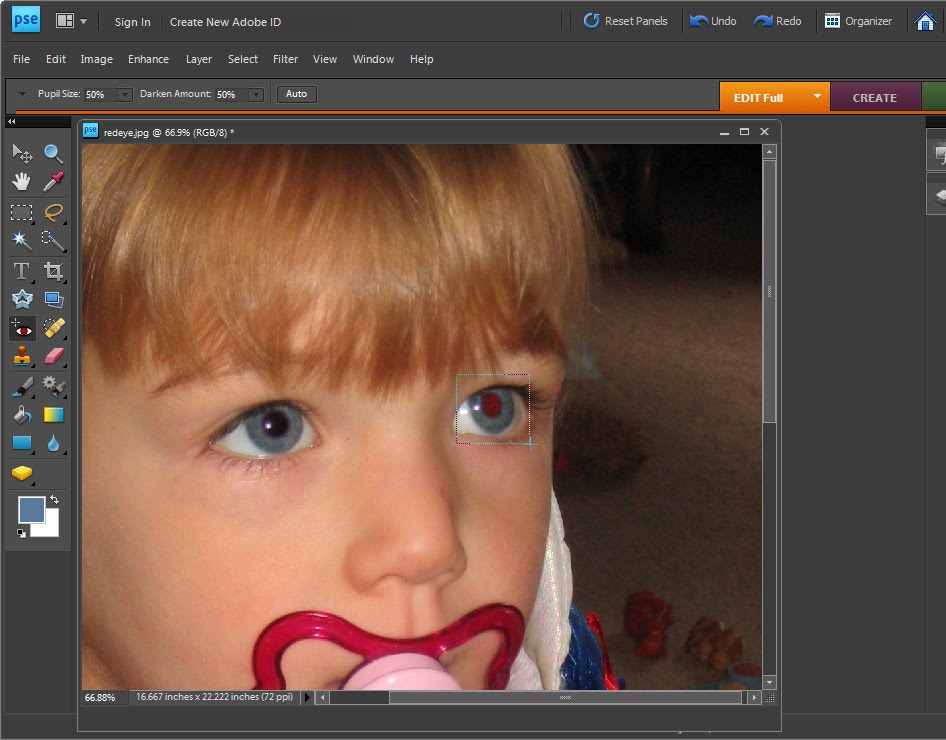


Redeye is caused by the camera’s flash and is often difficult to avoid.

If your photograph has a subject with redeye you can fix it using the redeye tool in Photoshop Elements.

Click the Zoom Tool and click and drag over the eyes in the image to make them large enough that you see them clearly.

Click the Redeye removal tool and click on the red part of the eye. If necessary, adjust the Darken amount and the Pupil Size on the toolbar to get a good result. Fix each eye and then save the image.

Labels: ,

Tuesday, March 9, 2010

Step 9 Photo-editing workflow - Fixing imperfections


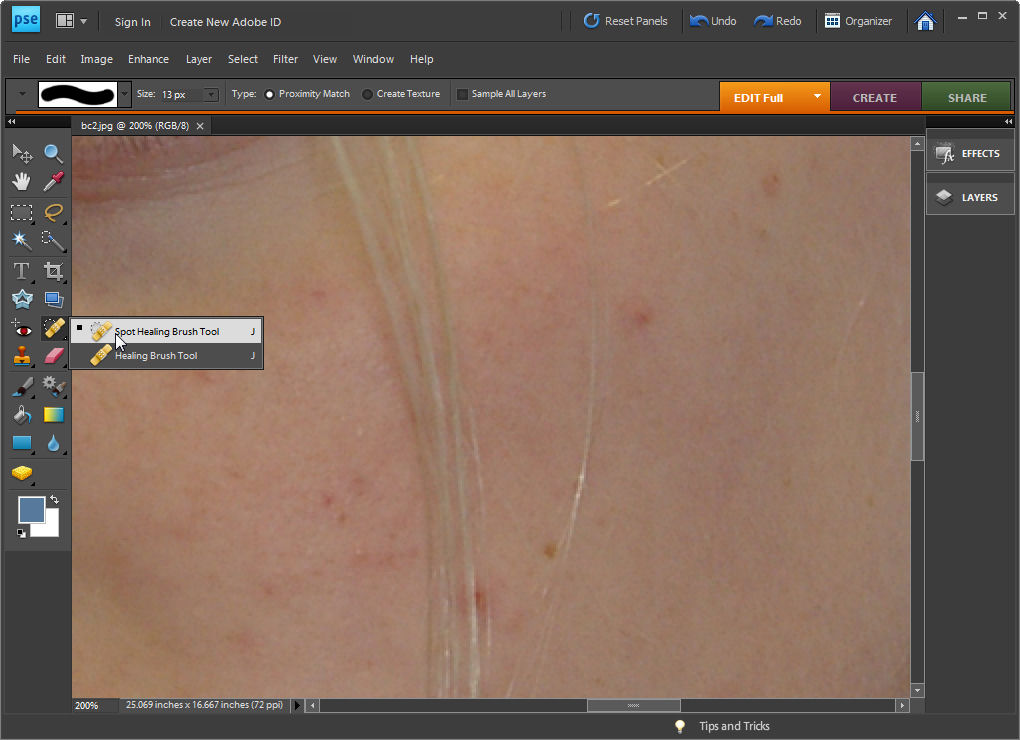
If you have a photograph of someone who has blemishes on their skin you can remove these by using the Spot Healing Brush tool.

Select the Zoom tool and zoom in onto the areas that require fixing.

Click the Spot Healing Brush tool and adjust the brush size so it is just big enough to cover the problem area.

Click once on the area and the blemish will disappear. If the fix is not perfect choose Edit > Undo Spot Healing Brush, adjust the brush size and try again.

Labels: , ,